External Hard Drive Keeps Sleeping on a Mac? What to Check When Disk Sleep Is Off
René Zuch ·
A slow first access after a quiet spell does not always mean macOS is ignoring your settings. Here’s how to tell a normal HDD spin-up from other drive problems—and how to test what’s happening.
You open a file on an external hard drive, and your Mac pauses. A few seconds later, Finder responds again. If the drive is a traditional spinning hard disk, it may have spun down while idle. The next access takes longer because the platters need to spin up again.
The “Put hard disks to sleep when possible” setting—or the Terminal command sudo pmset -a disksleep 0—can help when macOS is putting the drive to sleep. But it does not necessarily control every timer in an external drive or its enclosure. The behavior depends on the drive and its USB or Thunderbolt enclosure. Some manufacturers provide their own power settings; others do not let you change the timer.
First, make sure it is a spin-up
A delayed first access after a long idle period can be normal for an HDD. An SSD has no motor to spin up. It can still enter a low-power state, but it does not have the same mechanical start-up delay.
Slow access alone does not prove that a drive spun down. If it disappears, reconnects, makes unusual noises, or reports errors, also check the cable, hub, power supply, and drive health. If the data matters, make sure you have a current backup before troubleshooting further.
What disksleep can—and cannot—tell you
In Terminal, this command shows the current value for each power profile:
pmset -g custom | grep disksleepA value of 0 means macOS will not request disk sleep for that profile. It does not rule out a separate idle timer in the drive or enclosure. Changes made with pmset -a apply to all power profiles, so consider the effect on power use and note the previous value if you may want to restore it.
How to test your drive
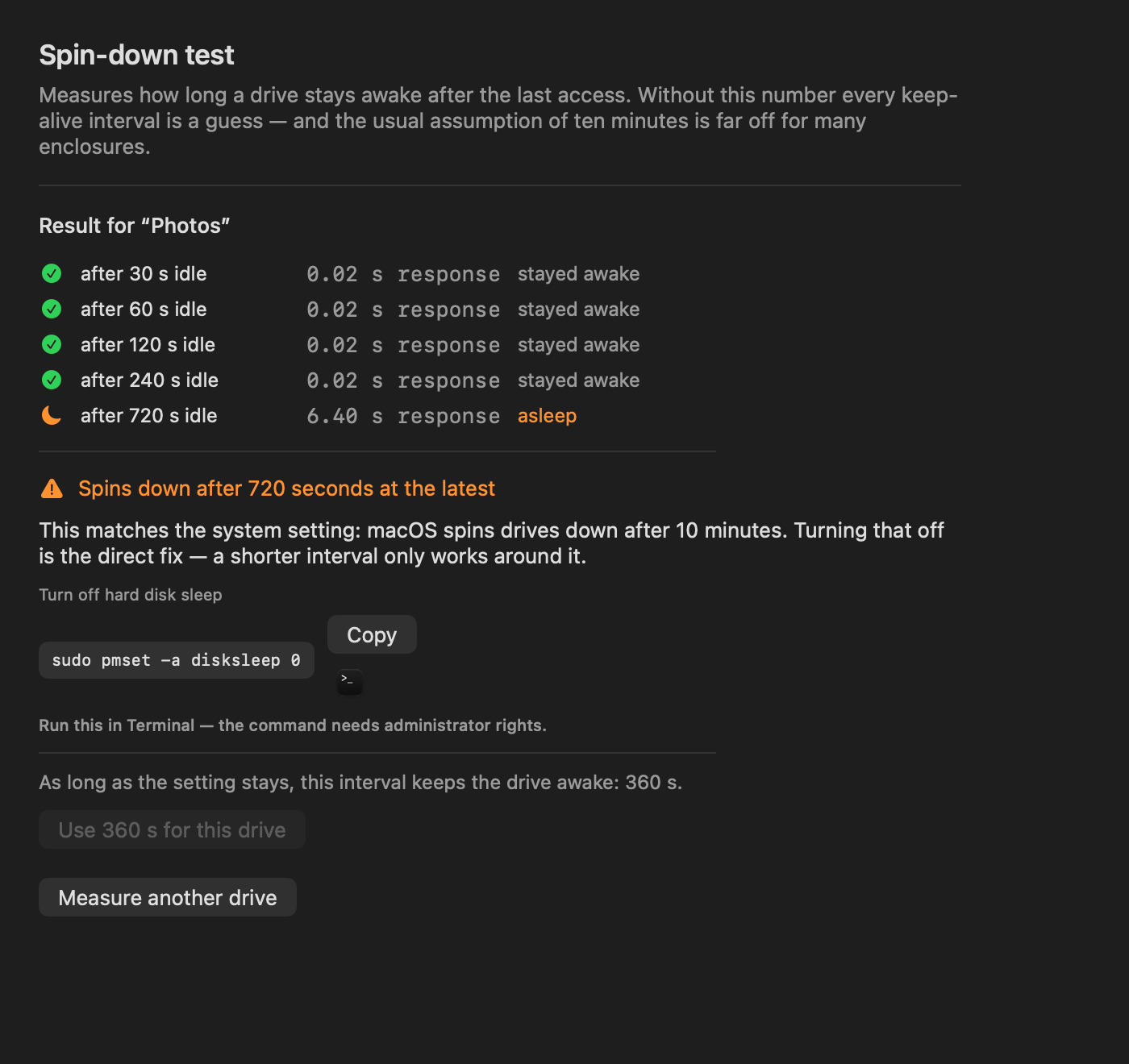
For a useful comparison, the drive needs to be genuinely idle during the wait. Quit apps that might access it, and do not run the test during a backup or a large file copy. Turn off any keep-awake utility while testing, too; otherwise, you may be measuring its activity instead of the drive’s idle behavior.
Wait 30 seconds, then access a file you have not just opened. Time how long the first response takes. Repeat after 60, 120, and 240 seconds. A noticeably slower first response may indicate a spin-up. If it stays quick, that does not prove the drive never sleeps: a background process may have kept it active, or the data may have come from a cache.
Treat this as evidence, not a direct readout of the drive’s mechanical state. The result is more useful when you rule out background activity and repeat the same test.
What can help if the drive really is spinning down?
Check whether the drive or enclosure manufacturer offers a power-management setting. macOS and manufacturer utilities do not behave the same way with every drive-and-enclosure combination.
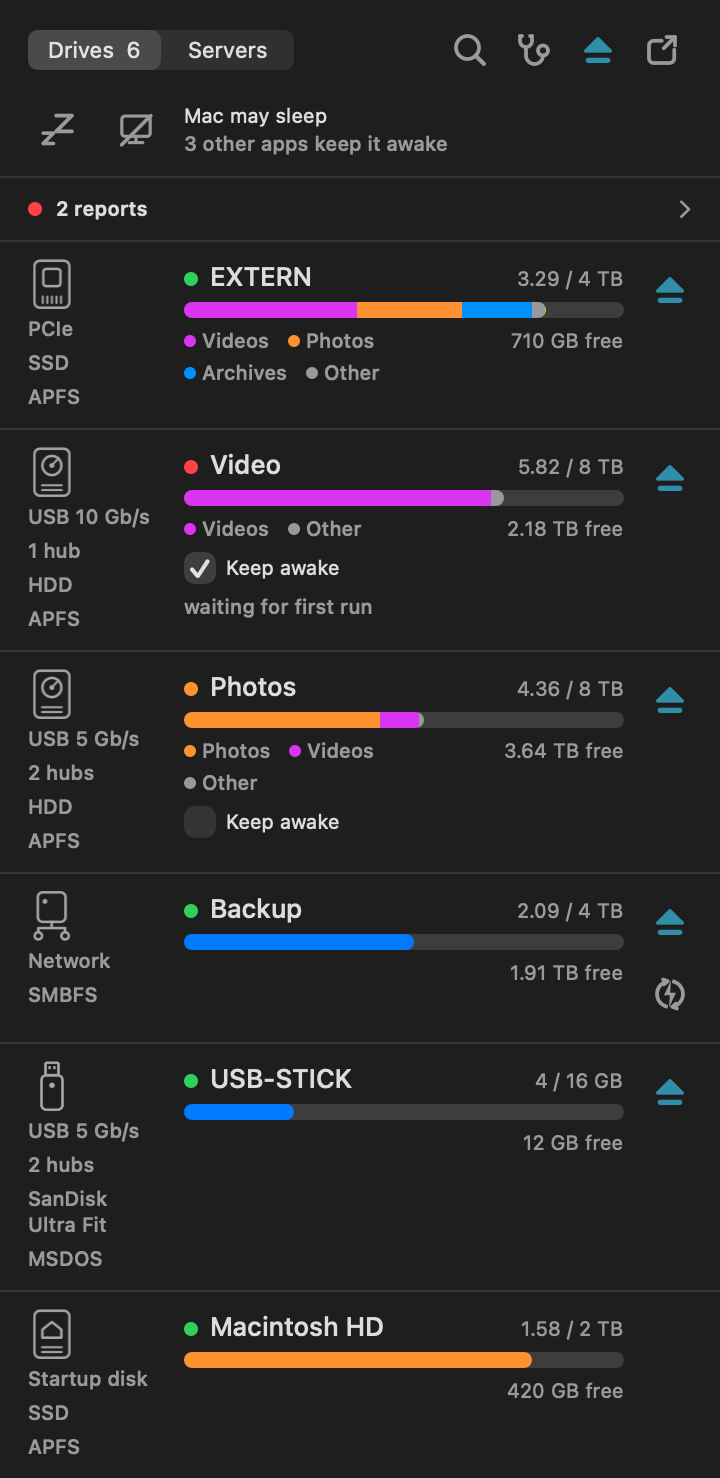
A keep-awake utility can perform regular, real drive I/O where that approach works. A power-management assertion that asks the system not to idle a disk is not the same as accessing the disk: Apple’s documentation for kIOPMAssertPreventDiskIdle says the caller should also perform disk I/O. That is why caffeinate -m is not a universal guarantee against spin-down.
The interval matters. If it is longer than the enclosure’s idle timer, the drive may spin down between accesses and start up again each time. Frequent writes are not free, either—especially when they are unnecessary.
DriveChief can measure spin-down behavior on a supported external HDD and use a suitable keep-awake interval for that drive. It is an option, not a repair for the drive’s firmware. I develop DriveChief, so this recommendation is not independent. Free alternatives are available if you only need a keep-awake utility.
The short version
Setting disksleep to 0 stops macOS from requesting disk sleep. It does not guarantee that an external enclosure has no separate idle timer. Check whether the device is an HDD or SSD, rule out background activity, and test after several idle periods. Then decide whether a manufacturer setting or a keep-awake utility makes sense.
Sources
- Western Digital: Sleep Timer settings — support-en.wd.com
- Apple IOKit:
kIOPMAssertPreventDiskIdle— github.com