DriveChief
Everything attached to your Mac — in one menu.
Download on the Mac App Store macOS 14 or newerEverything attached to your Mac
Drives, servers and the Mac itself — in one menu, without the detour through the Finder.
Download on the Mac App Store $9.99 · one-time purchase, no subscription · price varies by region · macOS 14 or newer · Apple silicon and IntelSix things, one menu
DriveChief looks after everything attached to your Mac — and the Mac itself.
Download on the Mac App StoreNever click through the Finder again.
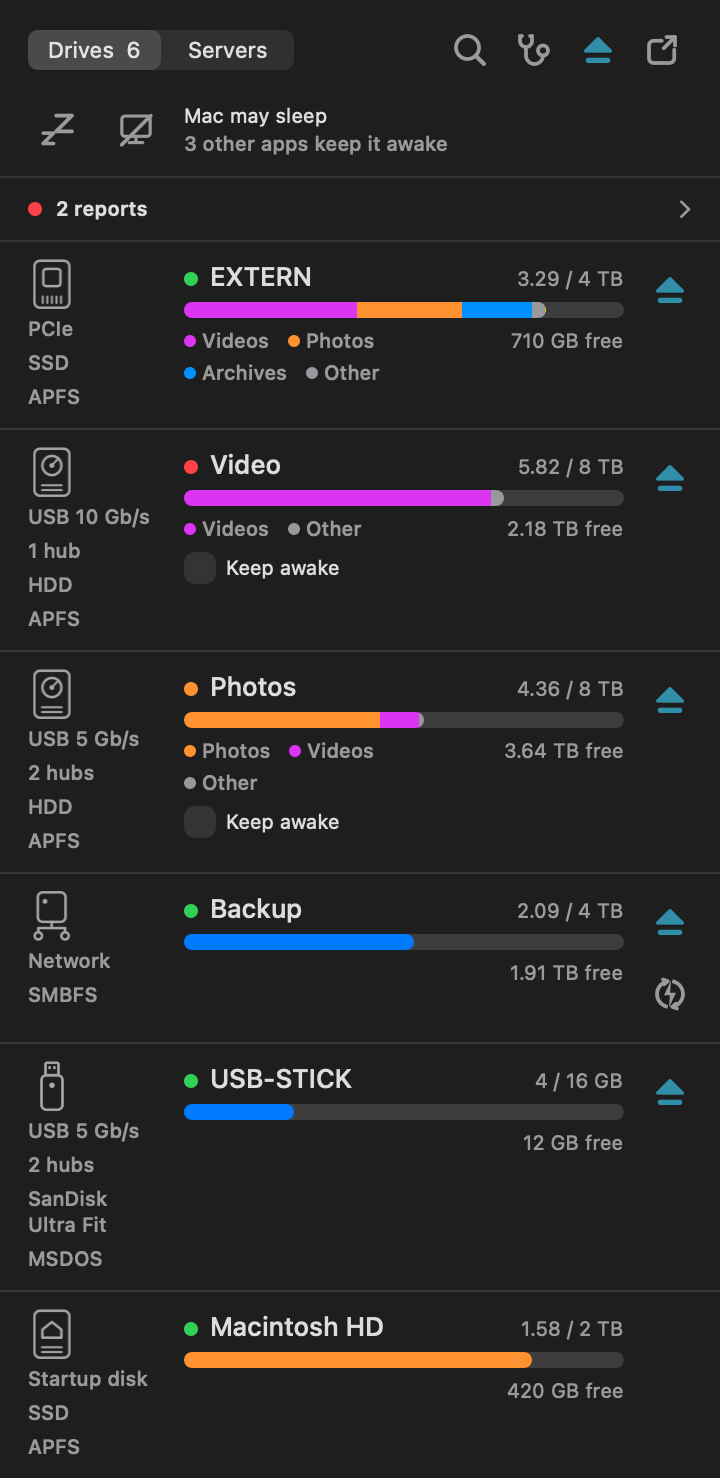
How full is the archive disk? Where is the stick? Which drive is on the slow port? It is all in one list, with bars instead of columns of numbers — broken down into videos, photos, archives and documents. Eject one drive or all of them at once, and in the background at that: no waiting, no beach ball.
And because every drive has its own Trash, which the Finder only ever shows lumped together: DriveChief shows it per drive, along with system files that may be safe to remove — and asks before you eject a disk that still holds either.
Which also means: you can empty the Trash of a single drive on its own — clear out the archive disk without touching the Mac’s own Trash. The Finder only knows “Empty Trash”, and that takes everything at once.
Disks that stay awake.
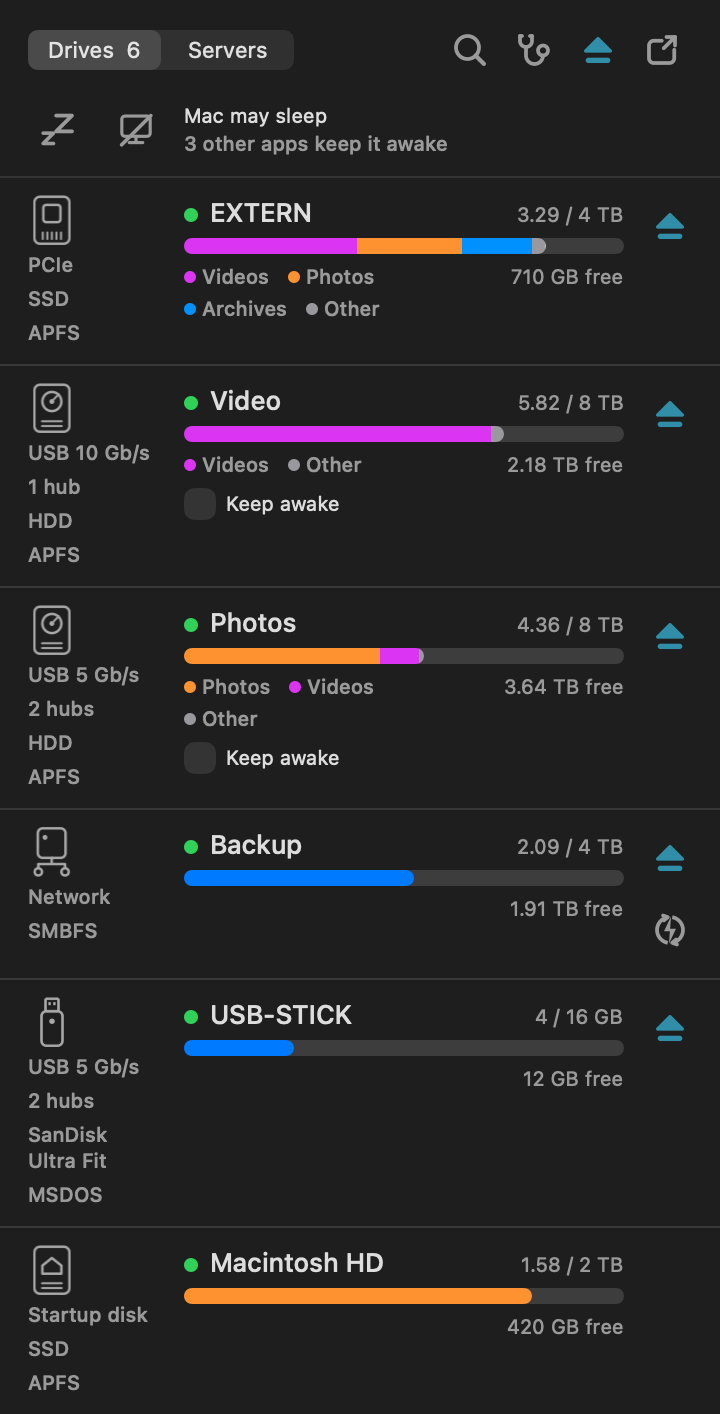
Hard disks in external enclosures spin down on the timer of their own firmware. In many enclosures the macOS setting “Put hard disks to sleep when possible” does not reach that timer — and then it does not help. DriveChief writes a small file at a fixed interval — 64 KB, written all the way through to the medium — and keeps the disk turning. One switch per drive — and only where something can spin: where macOS reports an SSD, a card or a stick, it never appears at all.
A built-in test measures how long each enclosure takes to spin down, then sets a suitable interval. Enclosures differ considerably in this — a drive that holds out for twelve minutes need not be served at the pace of another that spins down after 45 seconds.
And whether the switch is worth it for a particular drive, the app says itself: it counts what spinning down costs this drive in waiting time, and recommends it or advises against — with the right interval and a button beside it.
Why this setting isn’t always enough, and how to check your own drive without DriveChief: External Hard Drive Keeps Sleeping on a Mac? What to Check When Disk Sleep Is Off.
The ten seconds nobody counts
A drive that has spun down needs five to twenty-five seconds to come back. If nothing detects that, you blame your Mac.
It happens quietly. You click a folder and nothing happens. Two seconds, five, ten. Then it is there. Nothing was broken and nothing hung — a hard disk had simply gone to sleep and had to get back up to speed.
DriveChief can infer when a drive has spun down and spun back up by monitoring activity counters maintained by macOS. It doesn’t access the drive directly, so monitoring won’t wake it. The counters don’t identify which app caused the spin-up; for that, you can import a system log archive.
And it remembers whether someone used the keyboard or mouse shortly before. That is the difference between a number and an answer. A drive spinning up at night cost nobody anything. The same drive doing it three times before lunch costs you half a minute on every one of those mornings.
On a real machine
106 spin-ups
On a single drive — a photo backup, August 13 to 23, 9.5 days. 44 of them within five minutes of keyboard or mouse input — so very likely with someone sitting there: better than four possible interruptions every day.
Across every drive on that Mac: 344 spin-ups, 86 of them shortly after an input. Visible only because something was counting — macOS keeps no record of this.
Without touching the drive. It reads operating-system counters, not the disk. Polled once a second for 120 seconds: zero operations. A measuring tool that wakes what it wants to measure is worthless.
Detected, not felt. The counters count accesses, not revolutions. The app infers that the disk had spun down from the pattern: a long quiet spell, then a burst of unusually slow operations. Measured here: 10.06 s (Aug 13, 2026).
Works without the system log. The App Store edition cannot open the live log stream. This measurement runs anyway — it is the reason the sandboxed edition is not the poor relation here.
The app’s own wake-ups do not count. Storage scans and speed tests wake every drive they touch. Those spin-ups are marked and kept out of the recommendation.
Sharpened against real data. The first version wrongly counted 16 of 98 reports as spin-ups — in truth a drive under full load. The thresholds now sit where the two cases genuinely separate.
Click your way through the storage.
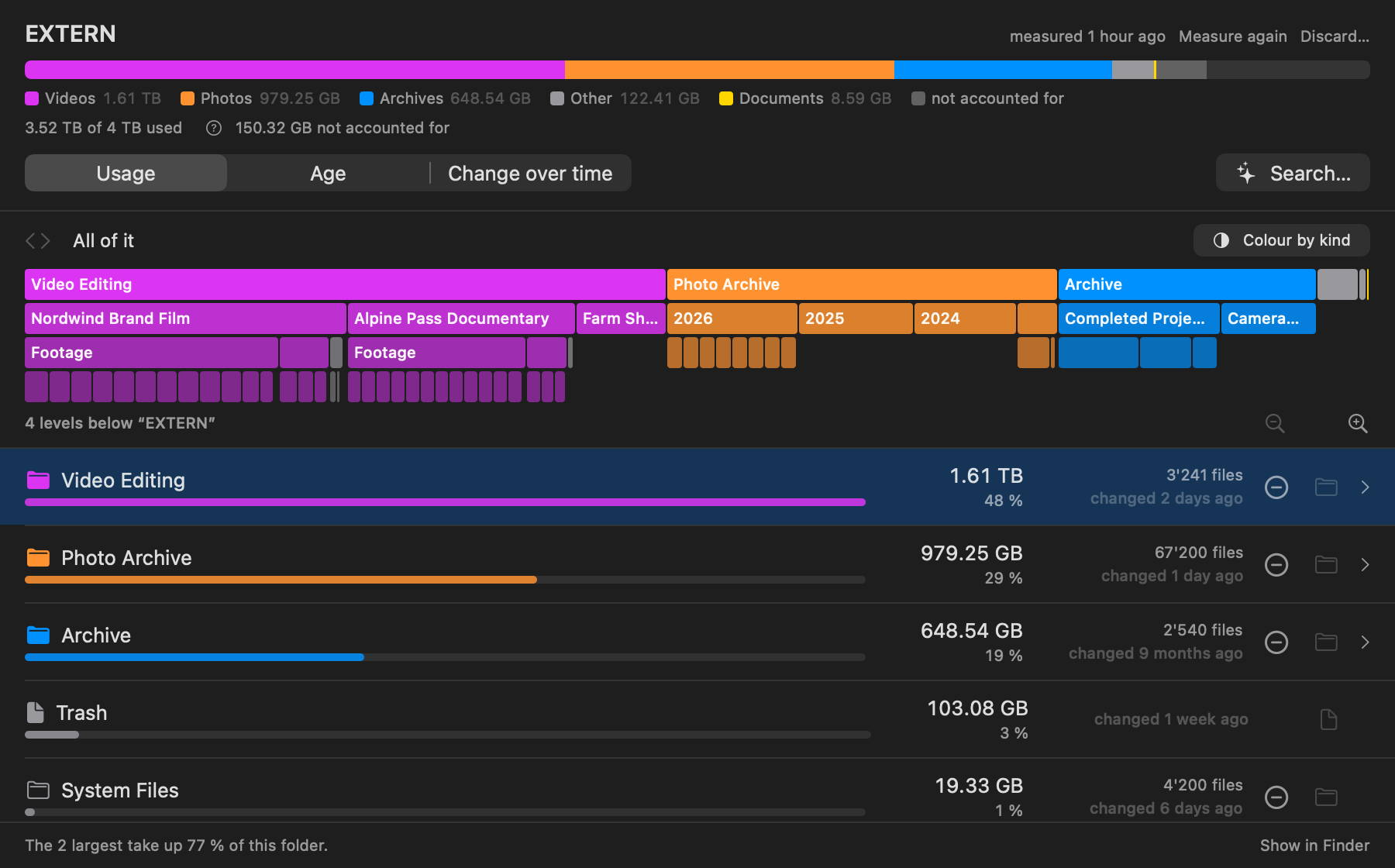
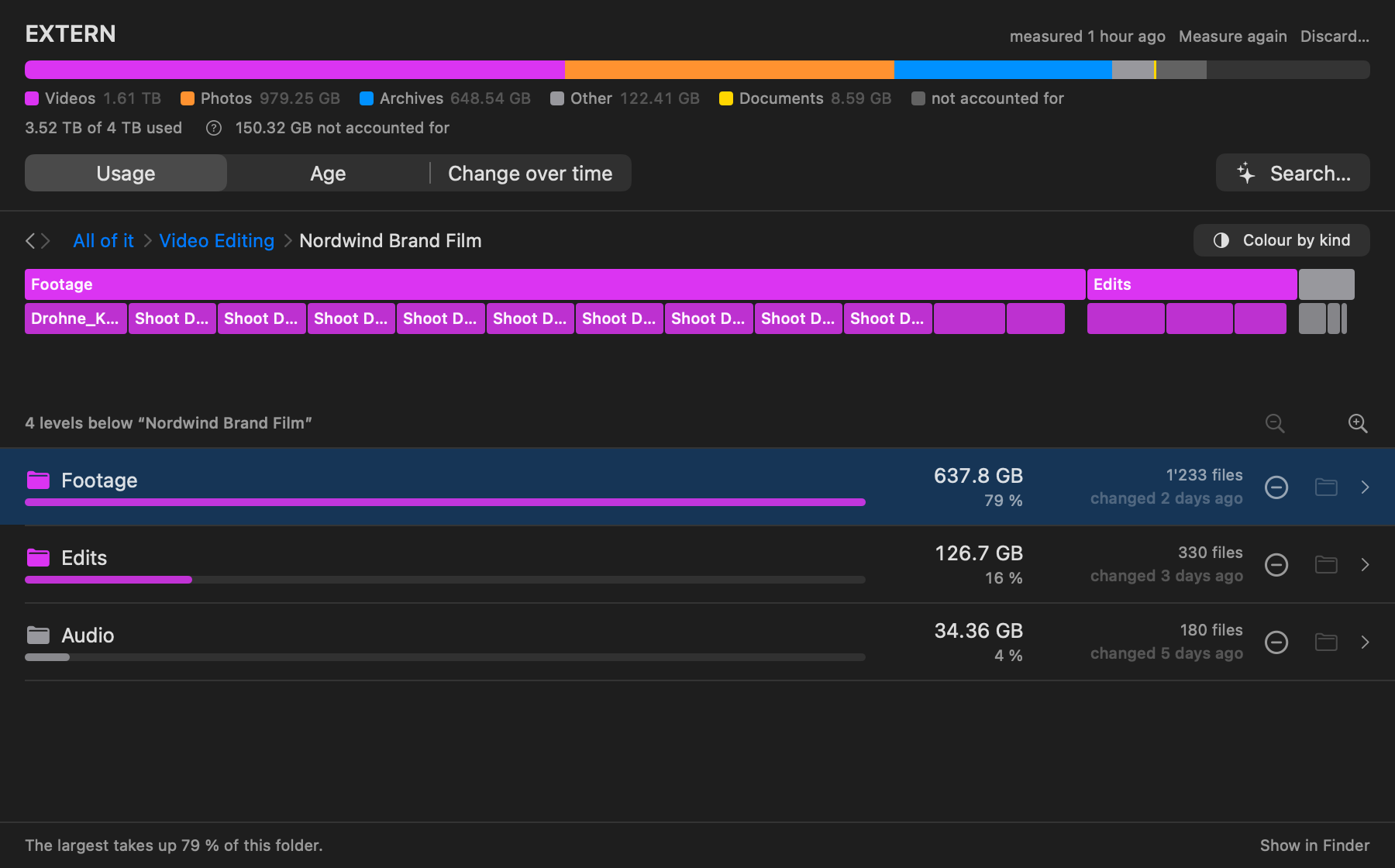
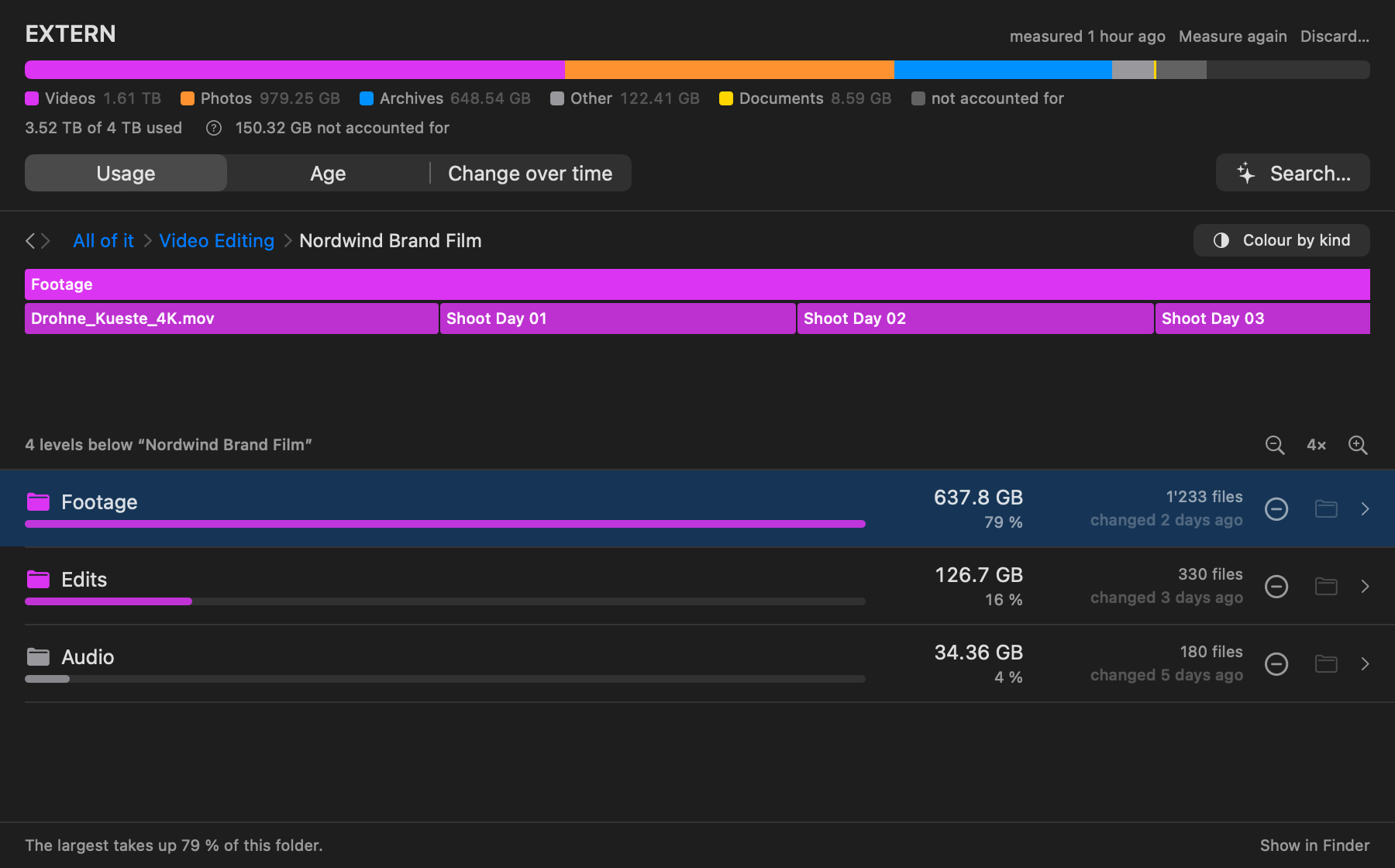
The icicle graph shows the whole structure at a glance — each level a row, each folder a bar, as wide as it is large. And it is not just a picture: a click on a bar leads in, the next level moves up, a breadcrumb shows where you are. Going back works like a browser — forward, back, up one level, with ⌘[, ⌘] and ⌘↑ as well. The list below does the same. Once you have found the folder you were after, one click opens it in the Finder.
Colored by file type, the tree shows where the videos sit and where the photos are. Where many small folders shrink to slivers, a zoom stretches the row until the names can be read again.
What’s been here for years?
People rarely clear up because a drive is full. They clear up once they know which part of it they no longer need.
The “Age” tab answers that with a figure rather than a search. It regroups the tree: the top level is five age bands — under a month, under 6 months, under a year, under 3 years, older. Only below them come the folders that fill them.
435.94 GB
untouched for over three years — 13 % of this folder.
That single figure sits above the view before you have clicked into anything. If you want to clear up, this is where you start — not by working through a list of folders.
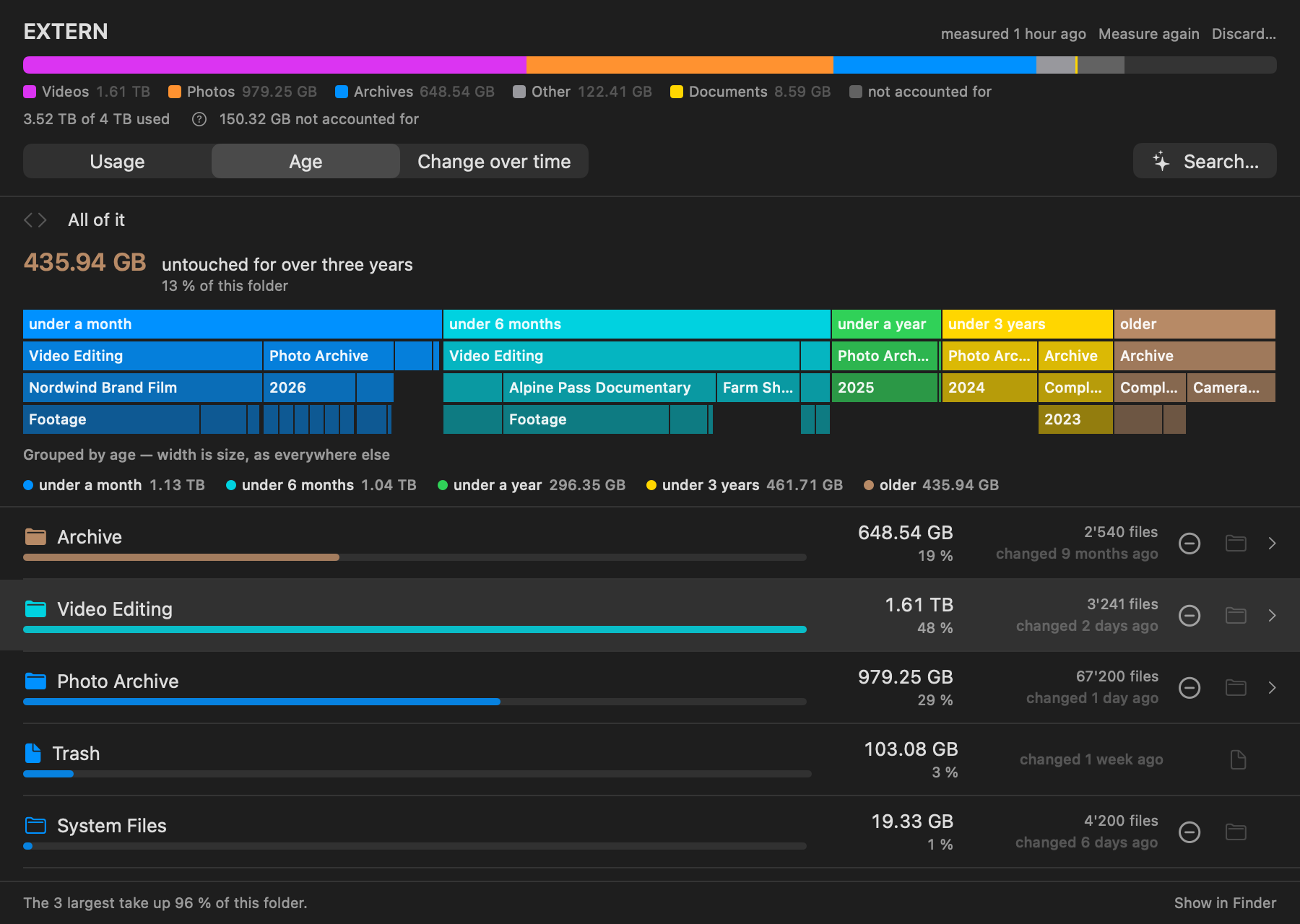
Width is still size. Age cannot be plotted as width: a folder is as wide as its contents together, and age does not add up. The grouping is by age, the measure is still bytes.
A folder may appear more than once. In the picture, “Photo Archive” sits in four of the five bands. That is not double counting, it is precisely the point: part of it is from yesterday, another part from 2023.
Reckoned against today. What is stored are absolute dates, not the distance from when the measurement was taken. A measurement from a year ago ages along with it correctly, instead of still claiming “under a month”.
Needs a fresh measurement. Older stored measurements do not know the distribution. The view says so and offers to measure — rather than claiming 0 GB.
And see what has grown.
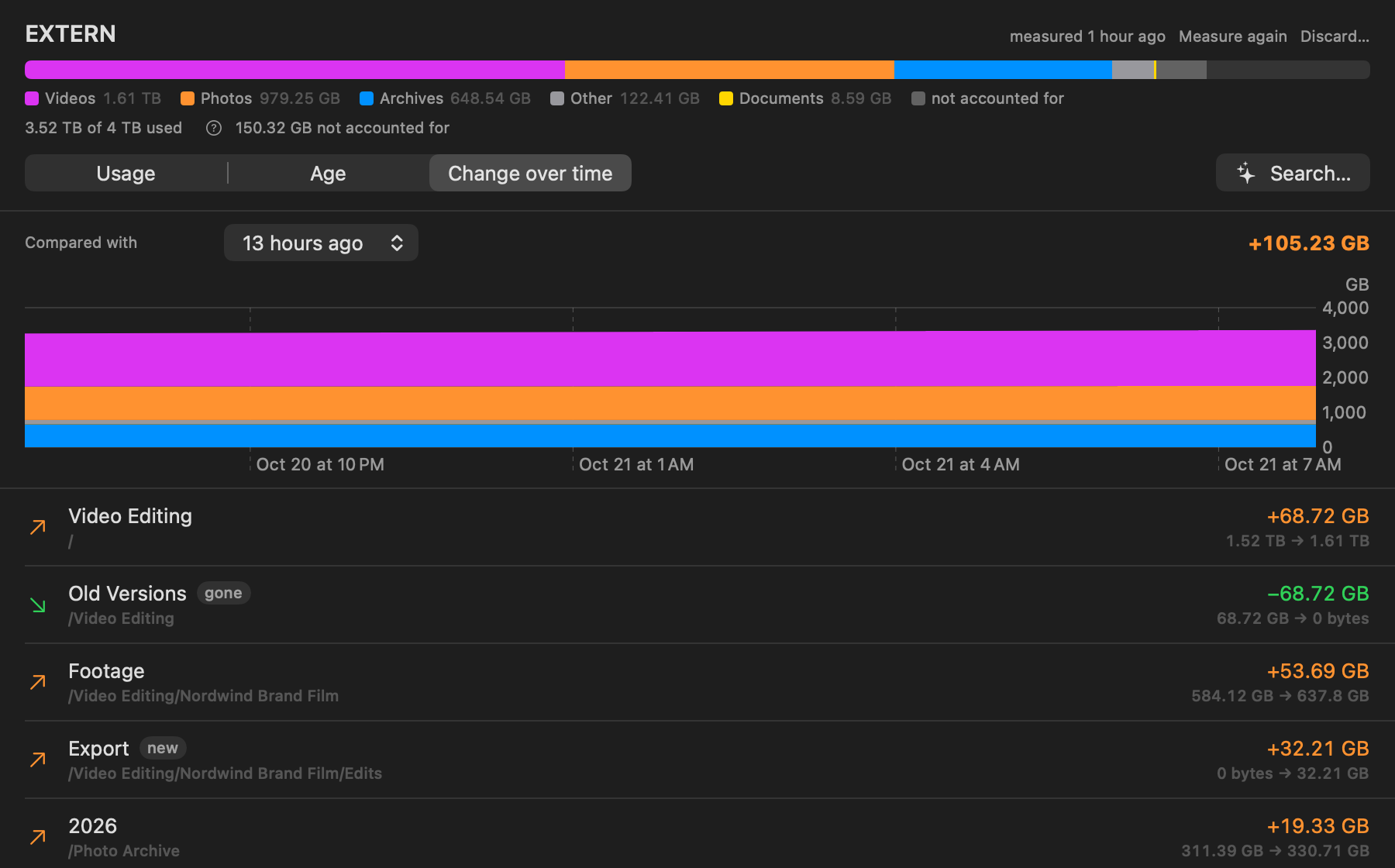
Not just what is large: the view compares two measurements and says which folder has put on weight, what is new and what has gone — with the figures before and after.
Ask once. Every drive.
You type what you are looking for, in ordinary words. DriveChief breaks the question into pieces you can see and change one by one: drive, kind, size, age. You see what will be searched for before it is searched, instead of working it out from the results.
It searches every drive at once — including the ones that are not plugged in. With a dozen external disks in a drawer you would otherwise ask a dozen times. DriveChief answers from its last measurement, tells you when that was, and names the drive you need to plug in. A saved scan holds the big folders and files, not every last one.
If you like, an on-device language model can help figure out the file type — but its suggestion only kicks in once you have confirmed it. Your query still never leaves your Mac, and search also works without Apple Intelligence.
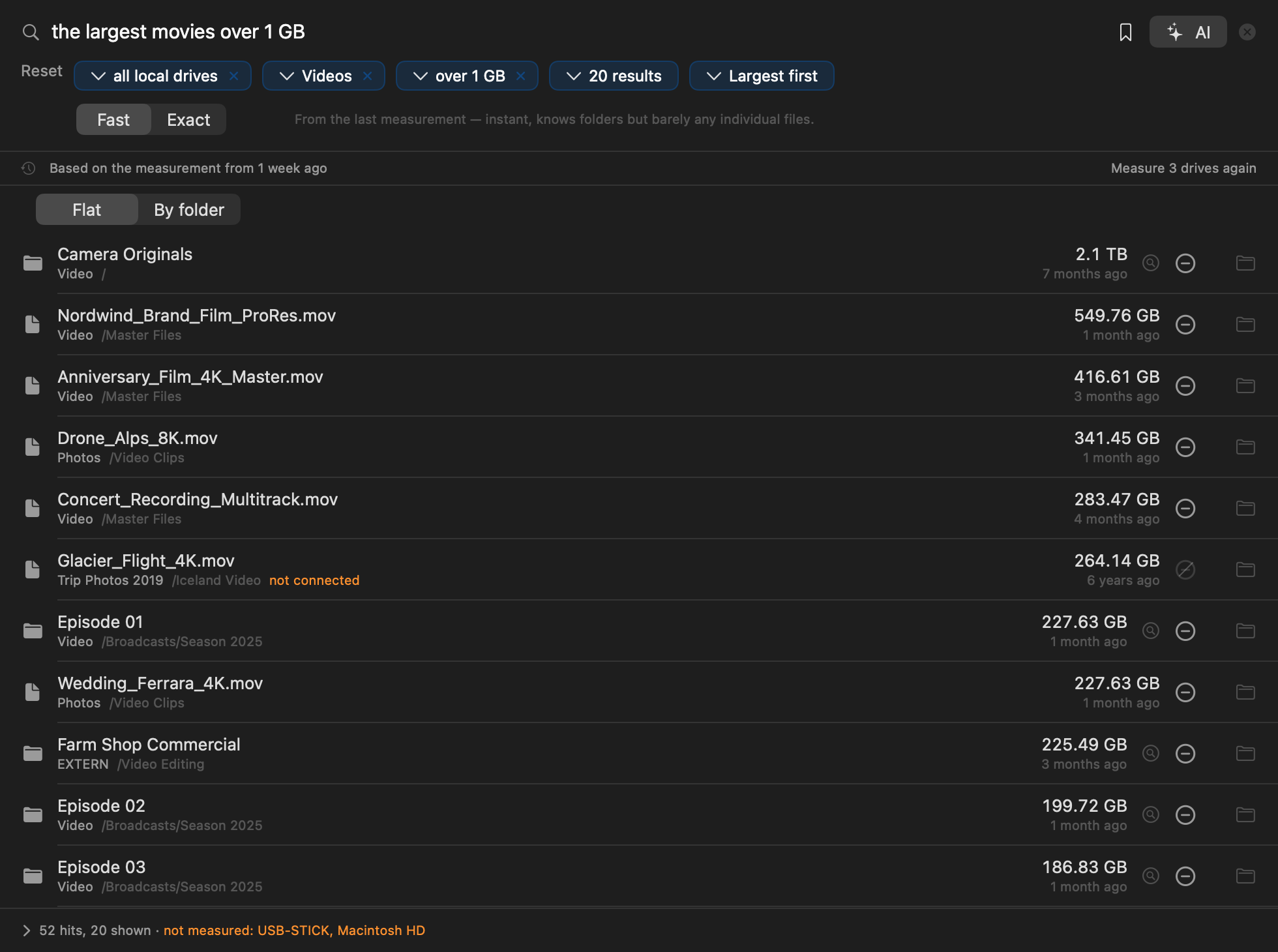
Two routes, one window.
Fast answers from the stored measurement — in seconds, and it knows drives that are not connected. Exact reads the drives themselves and therefore also finds what has appeared since the last measurement. The app picks a route for you; you can switch at any time.
Review first. Delete when you’re ready.
Click the minus beside a file or folder to add it to the collector. The storage map updates immediately, so you can preview the space you could reclaim. Review items across drives, then move them to each drive’s Trash individually.
A bar along the bottom keeps count of what you have collected, and a window of its own lists everything with its full path. You can remove individual items from the collector at any time.
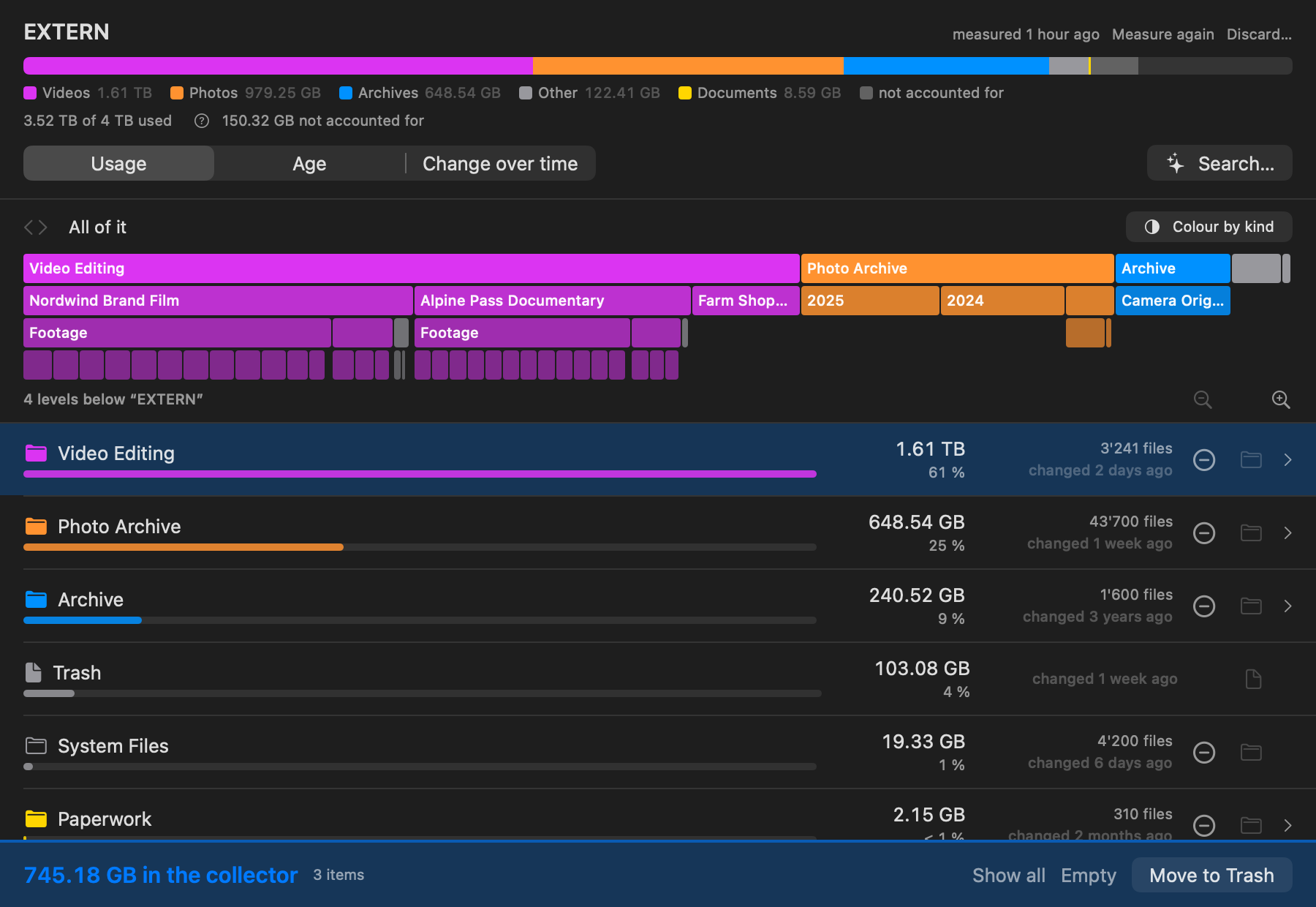
You can collect across every drive, in a single window, grouped by drive. Moving to the Trash happens one drive at a time, with a button that names the drive. Items are moved to each drive’s Trash separately — there’s no single action that sends everything to the Trash.
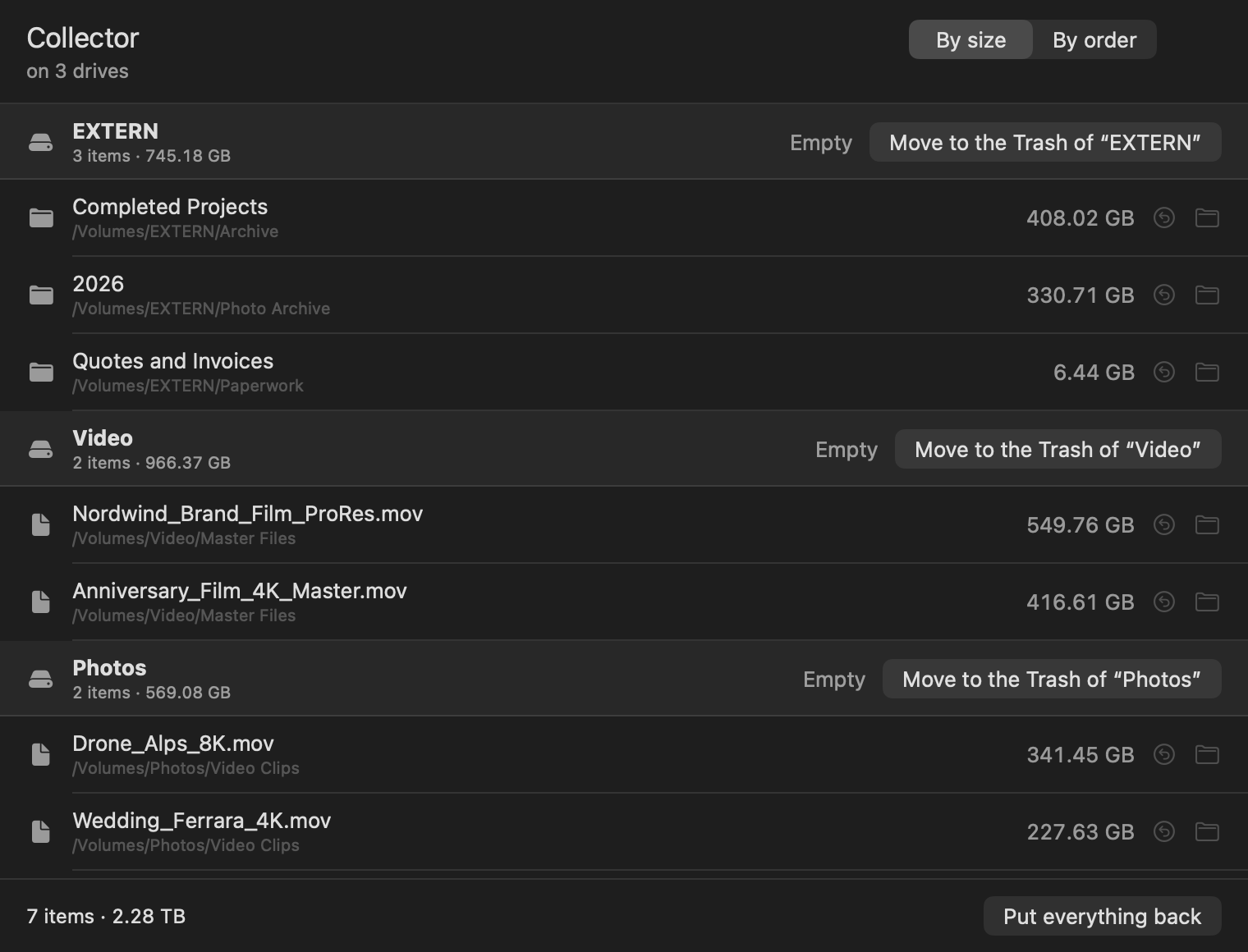
Into the Trash, not deleted for good.
Each drive has its own Trash, and items can be restored individually from that drive’s Trash.
If you slip, you bring it back. Reversibility carries the safety, not a countdown of seconds. The per-drive Trash and put-back were there already — the collector just builds on top.
A memory for your drives.
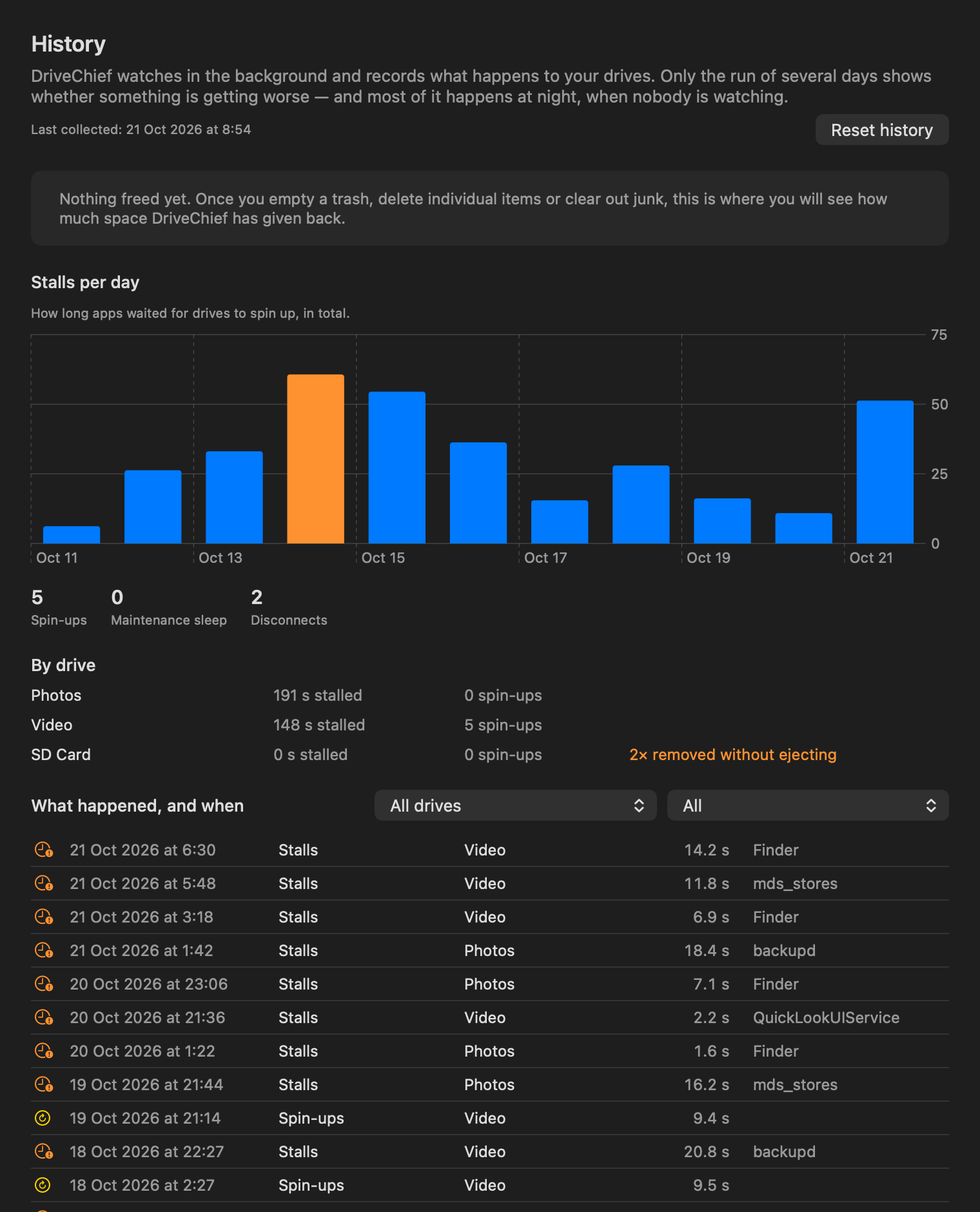
What macOS knows about your disks it keeps to itself — and what happened last night it will have forgotten by tomorrow. DriveChief writes it down: when a disk had to spin up, how long a program waited for it — and, with a system log archive read in, which one —, when a card was pulled without ejecting. That a disk had to spin up, DriveChief detects on its own; no log is needed for that. Thirty days of it, filterable by drive and kind.
That is the difference between “the disk was slow the other day” and “six times in ten days, always during the backup, always this one”. No other Mac app shows how often an external disk had to spin back up and what that cost in waiting time. SMART only keeps a lifetime total with no timestamps — and reading it talks to the disk.
Every detail of every disk — including the one in the cupboard.
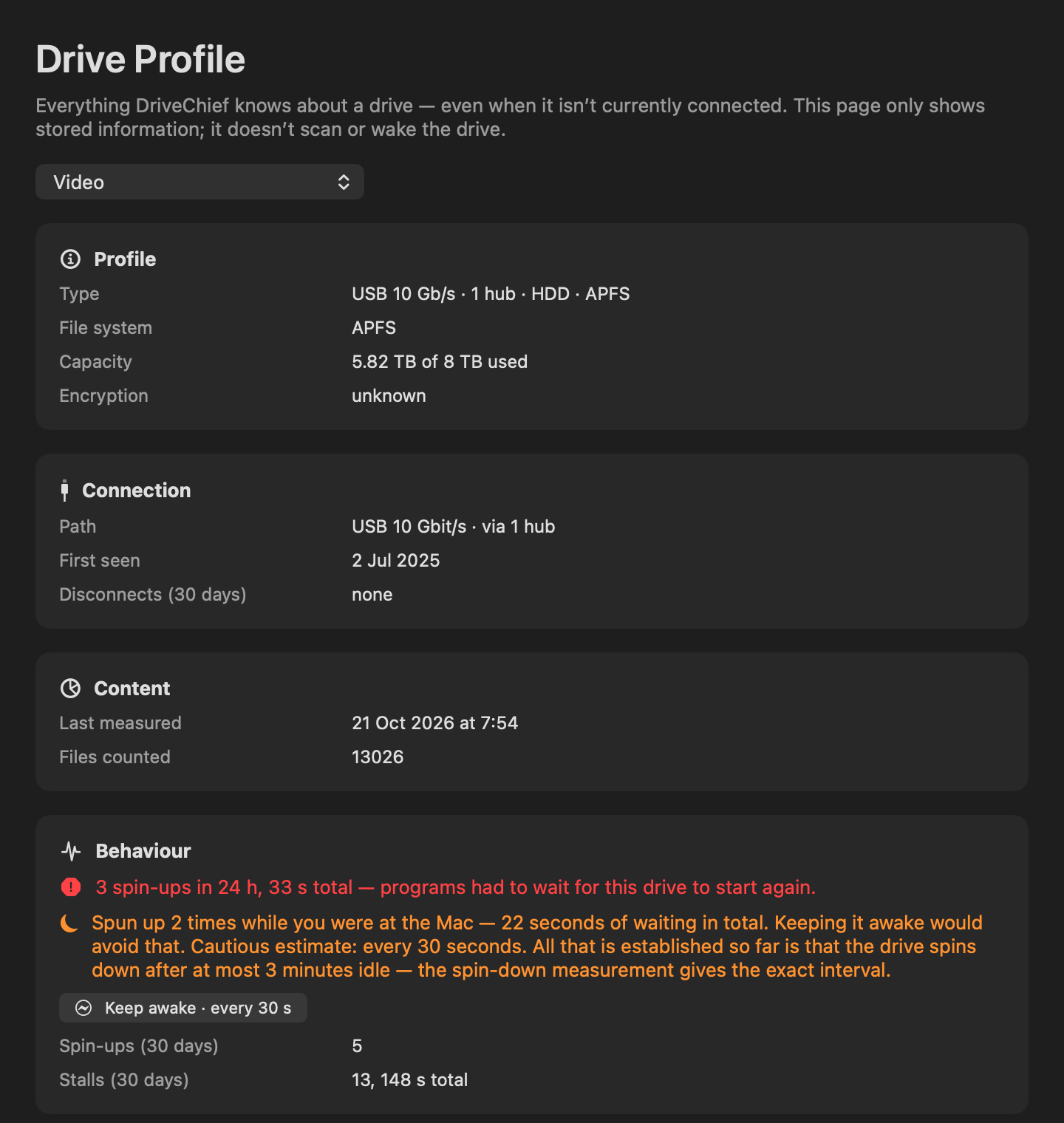
One click on the drive icon on the left of the row and everything known is in one place: drive type, file system, encryption, connection path, last scan, spin-ups, disconnects, failed ejects.
The special part is the list above it. It also holds the drives that are not connected right now — with whatever was true the last time. “When did I last have that disk attached, how full was it, was it encrypted?” is a question macOS answers nowhere. And since the diagnostics started measuring speed, it also says how fast the drive was last time — as a row over time, not as a single number. And where the app recognizes a Time Machine destination, it says how many days it has been away — without ever claiming that a backup succeeded. It does not look inside the backups.
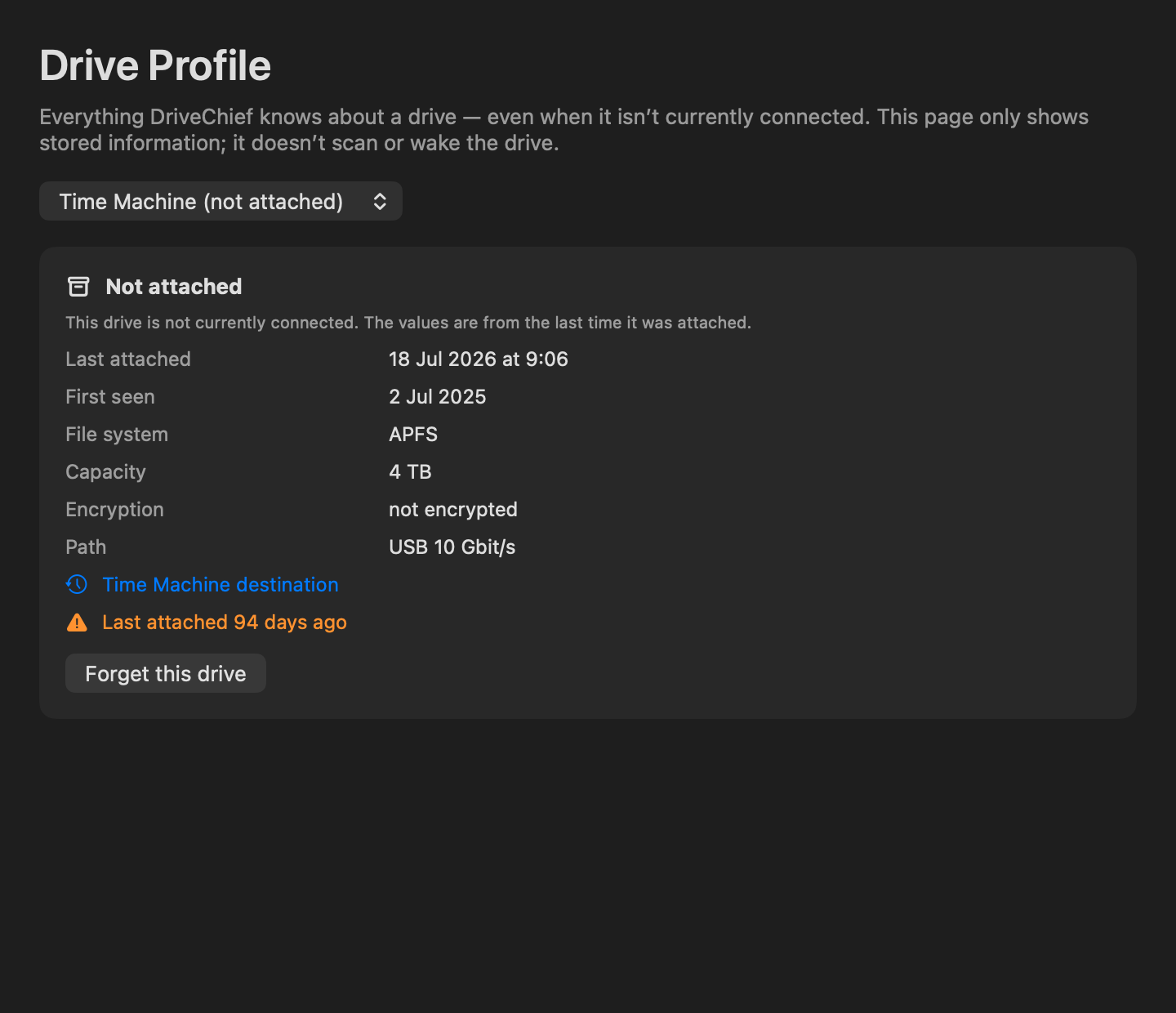 Not connected: the figures from last time — and how long the Time Machine destination has been away.
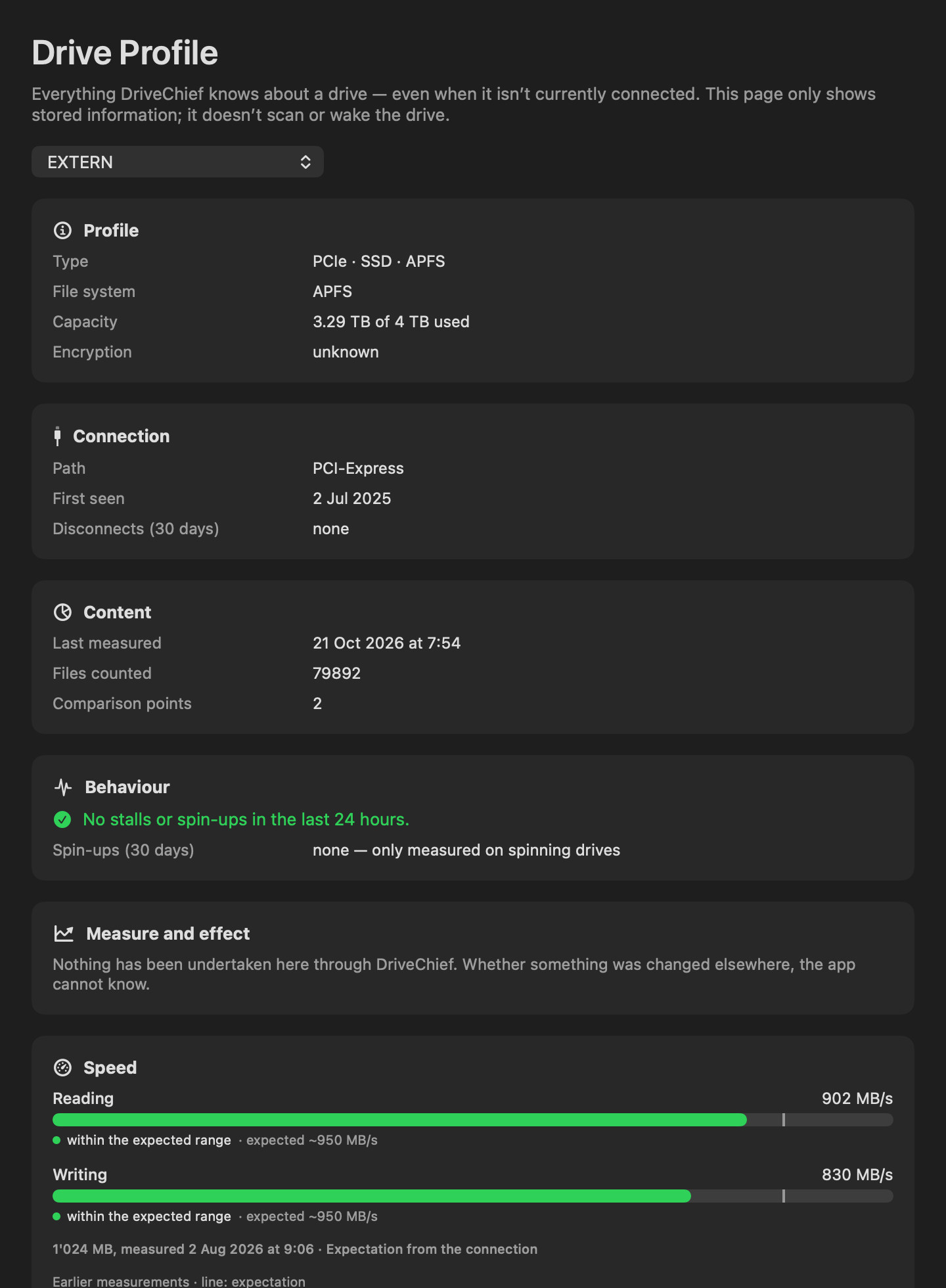 Connected: profile, connection, contents and behavior in one view. Nothing is measured here.
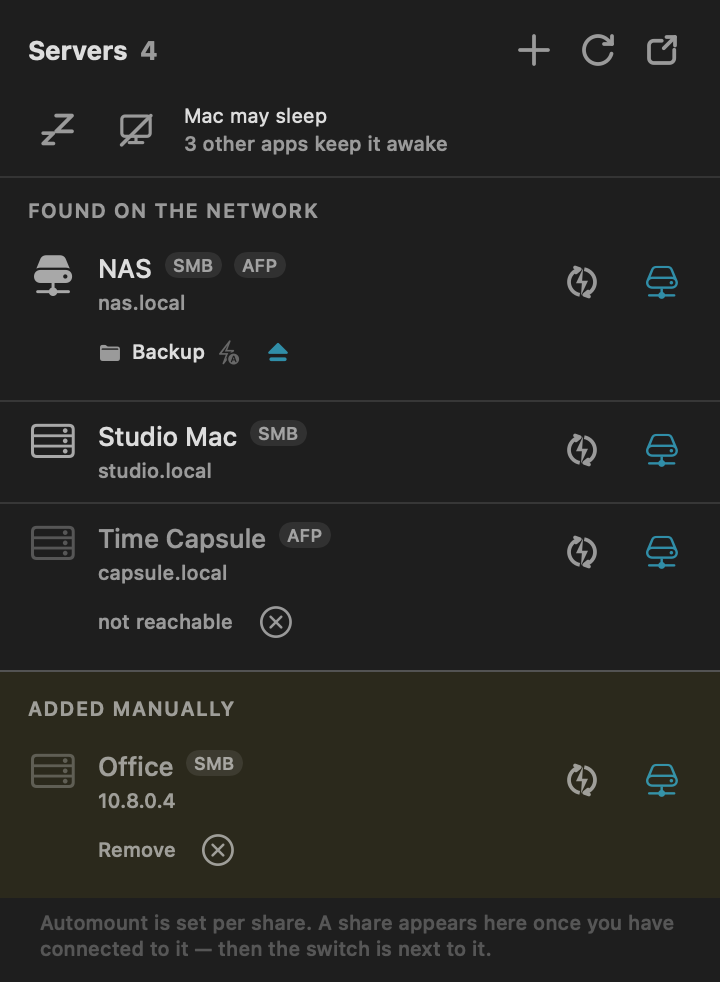
Network shares, connected automatically.
Find network shares and reconnect them automatically at login — the switch sits per share, not per server. The app never touches passwords: macOS signs in using the keychain. What Bonjour finds on the network is listed on top; what you entered yourself — a server behind the VPN, say, which Bonjour never sees — sits below it, set apart and tinted. After switching networks, you can tell which servers are gone and which simply aren’t visible on the current network.
The Screen Sharing button opens the selected server directly in the macOS Screen Sharing app.
And when a disk stalls anyway
A drive suddenly takes ten seconds to answer — and macOS does not say why. The diagnostics work through sixteen possibilities, name the source behind every finding and, where there is one, the way out.
“The Finder spins for seconds.”
Usually a disk that had fallen asleep and has to spin up first — woken by the Finder itself, by Spotlight, or by maintenance sleep. Four checks get to the bottom of it: how often the Mac went to sleep, whether the Finder and Spotlight keep polling the disk — and, with a system log archive read in, exactly who woke it and how long the wait was. The finding names the drive, the seconds and the process responsible — and offers “Keep awake” right there as a button.
“The drive just disappeared.”
That looks like falling asleep but is something else: it lost the connection and re-registered. Keep awake does not help against this. The check separates the two and names the remedy — drive straight into the Mac instead of a hub, a hub with its own power supply, or a different cable.
“It is slower than it should be.”
Three checks: how many hubs it hangs behind and at what speed, whether it is connected more slowly today than usual — and what it actually delivers, measured against what the connection and the medium can give.
“It sleeps when it should not.”
The setting “Put hard disks to sleep when possible” often never reaches the timer inside the enclosure — having it switched off is no all-clear. And with Power Nap switched on, macOS takes the USB mass storage drivers down to power state 0 anyway — with the setting having nothing to do with it. Four checks work through that, down to the drive type: SMR disks stall at times, and that is not a fault.
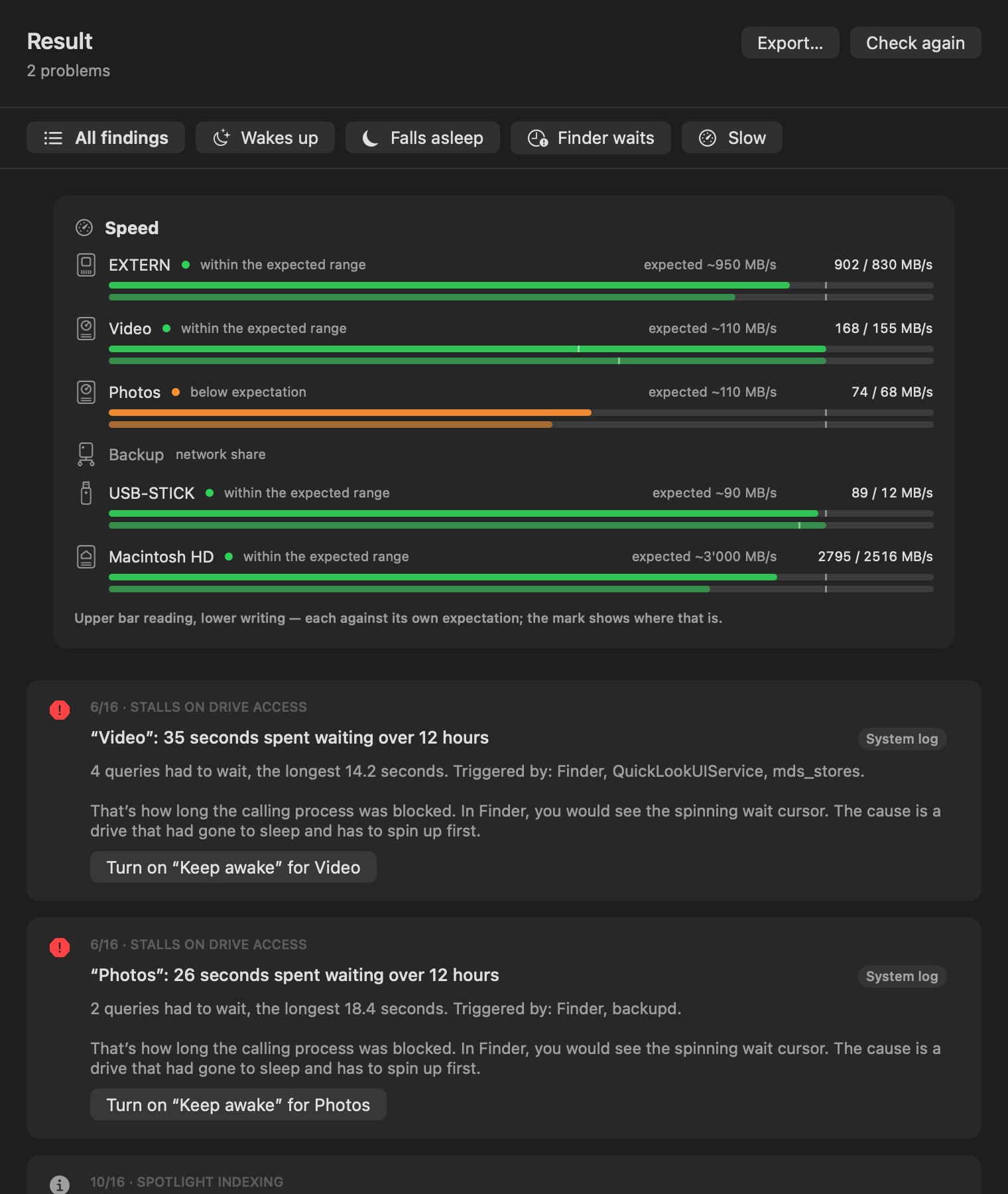
The result can then be questioned. Above the list of findings sit four questions — wakes up, falls asleep, Finder waits, slow — and the answer gathers only the findings that have something to say about it; switching the question needs no new run. It keeps apart what is proven, what is only a possible contributing factor, what was merely observed and what cannot be checked — and it names at most one next step, whose effect the Drive Profile later keeps beside the numbers from before. The rules behind it are hand-written, with no language model: the same case says the same thing tomorrow as today.
All sixteen
What is checked, and where each check gets its knowledge.
Where a source is missing, the check says so — instead of giving an all-clear it cannot back up. Three of the sixteen read the system log; without an imported archive the diagnostics leave them out and say so in one sentence, rather than reporting the same thing three times.
How fast is that drive, really?
Not “410 MB/s”. Rather: is that right for this drive on this port — or is half of it missing?
The fifteenth check measures. It writes a gigabyte to every connected drive, reads it back — and puts the result next to what you should expect, instead of leaving it to stand on its own.
That difference is the whole point. 410 MB/s is excellent for a hard drive and alarming for an SSD on a 10 Gb/s port. Anyone looking at the bare number has to know what it means — and the person asking the question is precisely the one who doesn’t. So the expectation is the lesser of two things: what the connection can carry and what the medium can deliver. A hard drive on Thunderbolt is still a hard drive. An SSD behind a 5 Gb/s hub gives you half — and that is what it will say.
The test runs as part of the diagnostics, all drives in one pass. Its result stays in the Drive Profile, and there the row of dots eventually answers the question a single measurement never can: was it always this slow, or only since last week?
Past the cache. Measure the file cache and you measure RAM. On a hard drive here: 146 MB/s against 21,000 from the buffer — a factor of 140.
All the way to the medium. Writes wait until the data is actually on the drive, not until the enclosure has accepted it.
Spin-up doesn’t count. A drive that has spun down has to come up first. That part is discarded, or the first figure would measure the spin-up.
Judged generously. Two runs on the same drive vary by three to thirteen percent. So anything reaching 70 percent of the expectation counts as normal — a warning that is often wrong soon goes unread.
And nothing that says nothing. Network volumes, disk images, read-only and nearly full drives are not measured at all.
Measured, not guessed.
Where guessing is not enough, it measures: the spin-down test leaves a drive alone on purpose and reaches for it again after 30 seconds, after a minute, after two, after four — until it has to spin up once. That settles how many seconds this enclosure takes to spin down, instead of estimating it. If you want, it works through up to half an hour of quiet.
The same rule applies here: if nothing is found, that means “did not spin down within four minutes” — not “everything is fine”.
The same test done by hand, step by step and without an app, is in the guide.
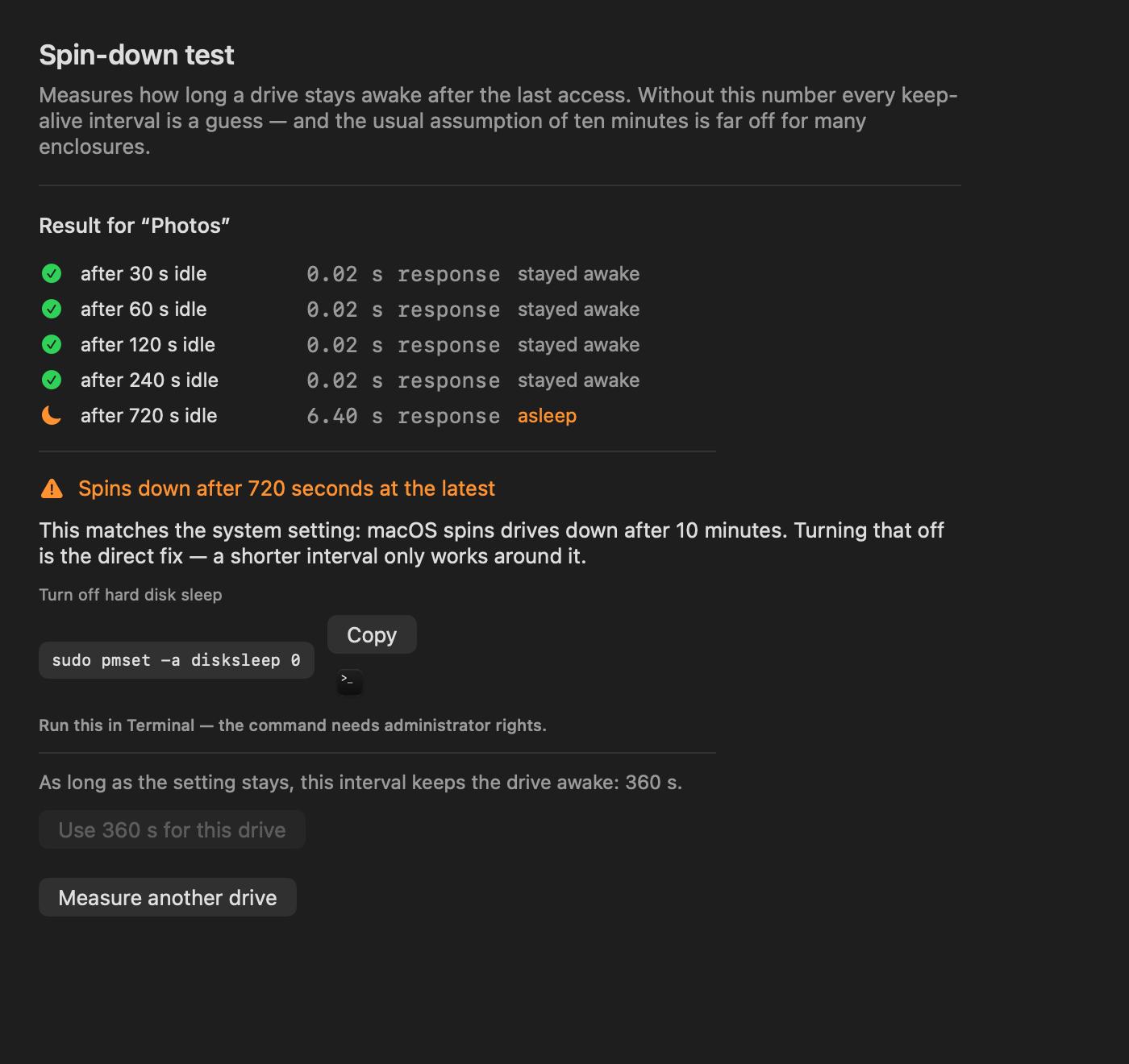 With a finding: the enclosure spins down after 720 seconds — with the cause, the command against it and a button carrying the Terminal icon. Another enclosure on the same Mac spins down after less than 45 seconds — which is why each drive is measured instead of guessing one interval for all.
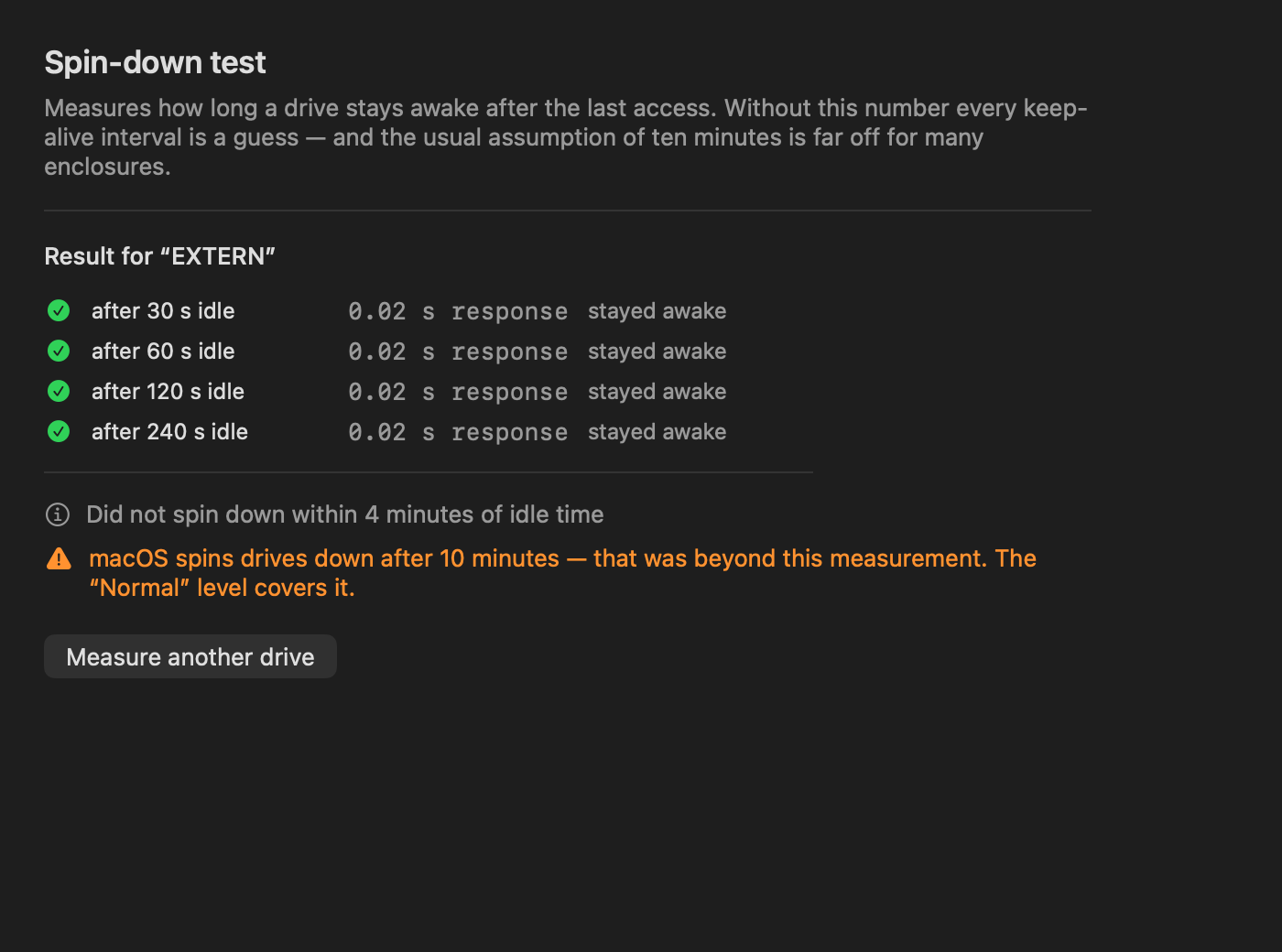 Without a finding: “did not spin down within 4 minutes of quiet” — and a note on what lay outside this test.
So nothing falls asleep in the first place.
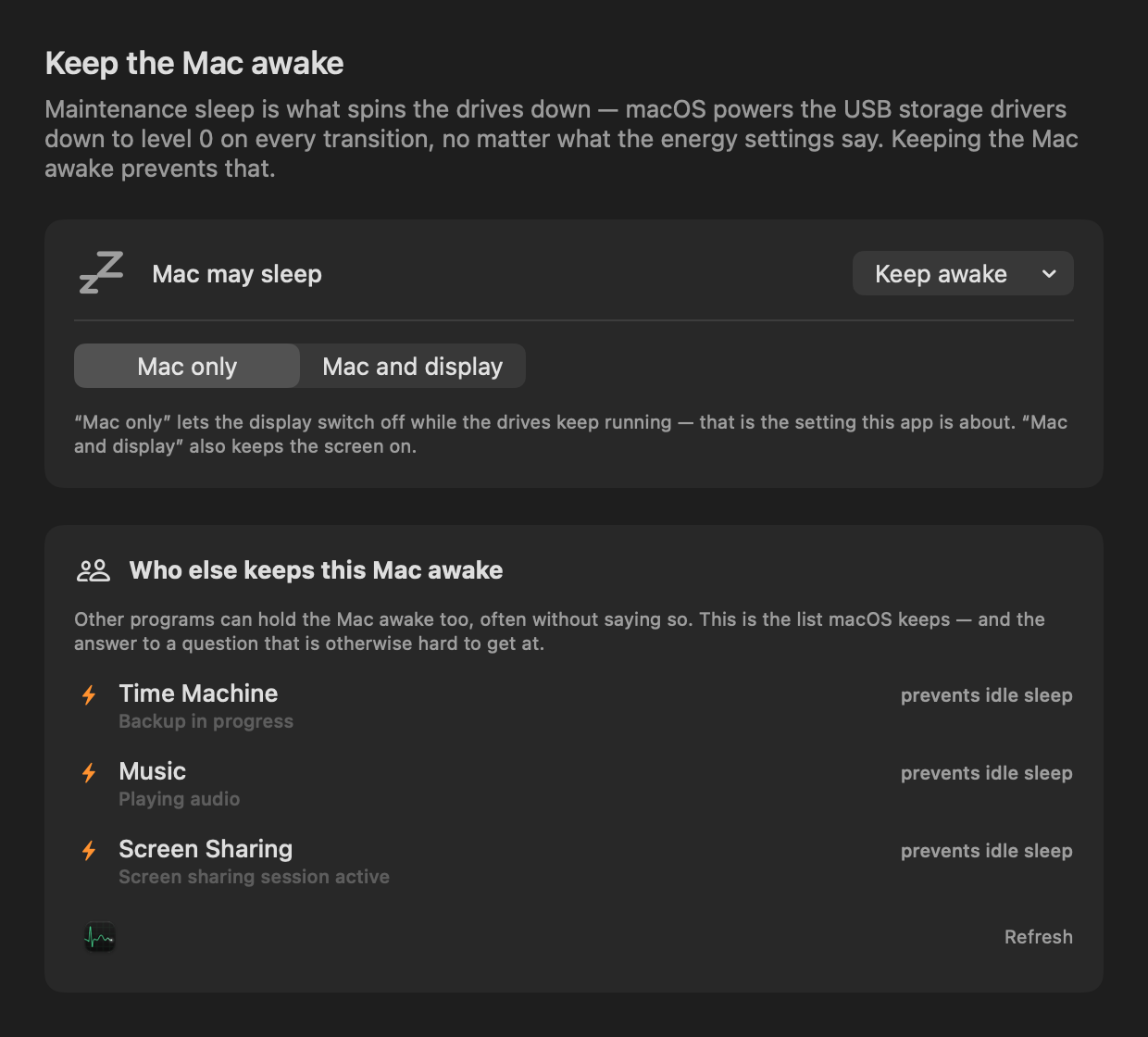
Maintenance sleep is the second cause — the one behind “it works after a restart, but not later”: with Power Nap switched on, the Mac goes to sleep regularly, and on each of those transitions macOS powers the USB storage drivers down to level 0, even when “Put hard disks to sleep when possible” is off. Keeping the Mac awake prevents that. One click is enough, with a time limit if you want: 30 minutes, one, two or eight hours — or until you stop it yourself.
The display stays out of it if you want: “Mac only” lets it switch off while the disks keep running. “Mac and display” keeps the screen on as well.
And the view answers a question that is otherwise hard to get at: who else is keeping the Mac awake. Other programs do, often without saying so. DriveChief shows the list macOS keeps of them — in words instead of abbreviations, with the reason beside it: not “PreventUserIdleSystemSleep” but “prevents sleep — backup running”.
What DriveChief cannot do
It cannot change firmware. An enclosure that refuses to be kept awake stays one.
It replaces neither a backup program nor Disk Utility.
The speed test tells you whether a drive is slower than expected — not whether it is failing. And it wakes every drive it measures. That is why it never runs on its own, only when you start the diagnostics.
The counters the spin-ups come from know nothing about programs. That a drive spun up, DriveChief detects on its own — who caused it appears only in the system log, and that has to be imported by hand.
Spin-ups only happen on spinning disks. SSDs do not fall asleep: there is nothing to measure and nothing to keep awake.
Three of its sixteen checks read the system log. For those you create an archive once with a Terminal command and import it — the app opens the Terminal for you. The other thirteen run without it. If the archive is missing, the diagnostics say so in one sentence and leave the three out, instead of reporting the same thing three times.
DriveChief for macOS
Made by one developer in Ins, canton of Bern, Switzerland. One-time purchase, no subscription. German and English. Sends nothing out — no statistics, no account, no sign-in. Updates through the App Store.
Download on the Mac App Store $9.99 on the Mac App Store · price varies by regionPrivacy
DriveChief sends nothing. No usage data, no crash reports, no identifiers. There is no server for the app to talk to.
What the app keeps on your Mac: the list of drives you have granted access to, your settings, the results of the storage measurements and a history of the events it observed over thirty days. All of it in the app's own folder on your Mac.
All of it can be deleted, in three places: measurements through “Discard…” in the storage view, the history through the history view, a single drive together with its past through “Forget this drive”.
A system log archive you select for analysis is read and not kept.
Help
“Keep awake is on, the disk falls asleep anyway.” Some enclosures ignore write access as far as their timer is concerned. The spin-down test measures whether that is the case here. The background — why a “don’t sleep” signal is no substitute for an actual access, and why the interval has to match the enclosure — is in the guide.
“Why can't I see my drive?” Access has not been granted; Settings → Drive access.
“Why do I have to create a system log archive for three checks?” Because macOS does not hand the running system log to an app from the App Store. The command is in the settings ready to copy, with a button that opens the Terminal right away.
Bug reports: In the app under Settings › Help › “Report a problem…” — that writes a report (version, drives, observations, the last log lines), reveals it in the Finder and opens a prepared email. If you only want to send the diagnostics, use “Export…” there.
Address:
Contact form: Write a message — no mail app needed.
Also by me: Loft — the notch as a switch for the menu bar
macOS 14 or newer · German and English