DaisyDisk or DriveChief? Storage analysis plus drive management
Both apps help you see which files and folders are using space. DaisyDisk focuses on visual storage analysis. DriveChief combines an interactive storage view with drive management, search across drives and diagnostic tools.
DaisyDisk
DaisyDisk displays a drive’s storage as an interactive ring map. You can open folders, find large files and review items in a Collector before confirming. DaisyDisk supports internal, external and network drives. It can also scan supported cloud services over the network. Other analysis features include a breakdown of hidden space and tools for APFS snapshots and purgeable space.
DaisyDisk is an established, focused storage analyzer. Some features depend on which edition you use: DaisyDisk is available from the Mac App Store and directly from its developer.
DriveChief
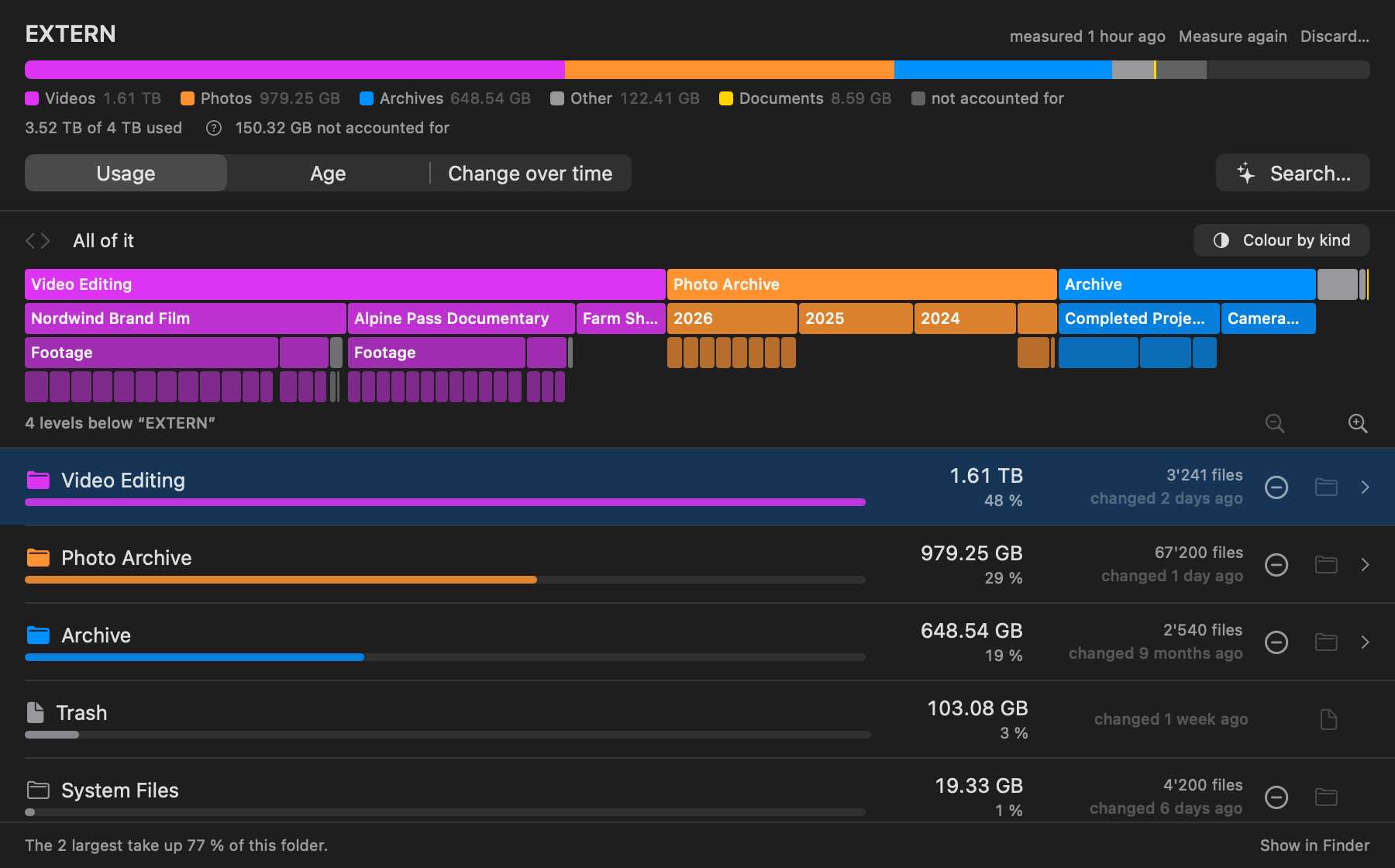
DriveChief also offers an interactive view of storage use, with folders arranged in levels. It adds tools for everyday drive management: keep an eye on connected drives from the menu bar, eject drives, connect network shares, search saved scans and investigate drive problems.
Cleanup remains reviewable, too. Gather files from multiple drives in one Collector and check your selection. Nothing moves while you review it. After you confirm, DriveChief moves the selected files to the Trash on their respective drives, where you can restore them individually.
The storage views side by side
Both apps provide an interactive map of storage use, but arrange it differently. DaisyDisk places folders in rings around the center. DriveChief shows folders in levels and adds a list with each folder’s size, file count and last-modified date. In both apps, you can open folders and drill down to their contents.
What DriveChief adds
Storage analysis
Explore an interactive map of the folders using space. You can view storage by size, age or changes since the previous scan.
One Collector for files across drives
Gather files from different drives in one place and review your selection. Nothing moves while you decide. After you confirm, DriveChief moves selected files to the Trash on their respective drives, where you can restore them individually.
Drive menu
See connected drives in the menu bar, with information about their usage and connection status. Open a drive in Finder with one click.
Eject
Eject one drive or all eligible drives in the background with a few clicks.
Network shares
Discover network shares with Bonjour or add them manually. DriveChief can connect them automatically at login and stores credentials in the macOS Keychain. Screen Sharing can also be opened for supported connections.
Search across drives
Describe what you’re looking for in plain language. DriveChief turns it into editable search filters. Search can include saved scans of drives that aren’t connected. Results for an offline drive come from its most recently saved scan; this is not a live search of a disconnected disk.
Keep external HDDs awake
Each transition between a stopped spindle and full operating speed adds a start/stop cycle to an HDD. Frequent transitions between idle and active states can use up a drive’s specified cycle ratings and may affect its service life. The rating depends on the drive model: Toshiba explains how start/stop and load/unload cycles relate to HDD reliability, and a Western Digital technical paper notes that frequent transitions into certain power-saving states can exceed specified cycle limits.
For supported external HDDs, DriveChief can use a small write at an interval measured for that drive to help avoid repeated stops and spin-ups. This does not guarantee a longer drive life: keeping a drive awake uses more power and may keep it audible. The feature is not intended for SSDs and can be controlled per drive.
Drive diagnostics
Diagnostic checks help narrow down possible drive problems. Findings identify their source and, where possible, suggest next steps.
Speed test
Measure transfer speed and compare it with the expected range for the drive and connection.
Drive details and event history
DriveChief shows details such as drive type, file system, encryption and the date of the last scan. A 30-day history records relevant drive events, including detected spin-ups and drives removed without being ejected first.
Sleeping drives
When a drive is asleep, DriveChief shows the last available scan and its date instead of automatically starting a new storage scan.
At a glance
Legend: Yes = documented or available in the app. Not listed = not described in the public DaisyDisk documentation used for this comparison; it does not claim that the feature is definitively unavailable.
| Feature | DriveChief | DaisyDisk |
|---|---|---|
| Storage | ||
| Interactive storage map | ||
| Scan external drives | ||
| Scan cloud services over the network | DriveChief measures locally synced folders on the Mac | for supported services; check edition availability |
| View usage by age or change since the last scan | not listed | |
| Search saved scans across drives | not listed | |
| Collect and delete | ||
| Collector before confirmation | ||
| Gather files from multiple drives in one Collector | not listed | |
| Restore files after confirmation | from each drive’s Trash | DaisyDisk describes Collector deletion as permanent |
| Drives | ||
| Manage drives from a menu-bar menu | not listed | |
| Eject one or more drives | not listed | |
| Discover and auto-connect network shares | not listed | |
| Help keep supported external HDDs awake | not listed | |
| Drive diagnostic checks | not listed | |
| Speed test compared with the connection | not listed | |
| Show drive details for disconnected drives | not listed | |
| 30-day drive event history | not listed | |
| Purchase | ||
| One-time purchase, no subscription | ||
| Minimum macOS requirement stated by the developer | macOS 14 or later | macOS 10.13 or later; older macOS versions may require a legacy edition |
About cloud scanning: DriveChief reports how much space locally synced cloud folders use on the Mac. It does not report total cloud-account usage. DaisyDisk describes network scans for supported cloud services. These are different features.
About DaisyDisk editions: DaisyDisk is available directly from its developer and on the Mac App Store. The developer says the App Store edition lacks some features available in the direct edition because of Apple’s requirements.
Which app is right for you?
If you mainly want a visual way to find large files and folders, DaisyDisk is an established, focused option. Its cloud scanning and tools for hidden space and APFS snapshots may be especially useful.
If you also want to manage drives and network shares, search saved scans across drives and use diagnostic tools, DriveChief brings those jobs together in one Mac app.
Both apps are one-time purchases. Check the Mac App Store or each developer’s website for current pricing and system requirements.
Get DriveChief
Learn more about features, requirements and privacy: DriveChief for Mac
This comparison is published by René Zuch, the developer and seller of DriveChief. It is not affiliated with DaisyDisk’s developer. DaisyDisk is a trademark of Software Ambience Corp. DaisyDisk feature information is based on publicly available documentation from its developer. Prices, availability and feature sets may change.